> ## Documentation Index
> Fetch the complete documentation index at: https://sensible.mintlify.site/llms.txt
> Use this file to discover all available pages before exploring further.
# Advanced Zapier tutorial
This topic describes how to configure an example two-Zap workflow for Zapier. The example workflow extracts data from emailed documents and uploads them as spreadsheets to Google Drive.
You can use the example Zaps in this topic as templates. For example, modify this workflow to trigger extractions based on other file actions in Zapier-support apps (for example, a new document uploaded to Google Drive instead of a new email in Gmail). Or, output to different destinations (for example, a database record instead of spreadsheet files in Google Drive).
### Zap 1
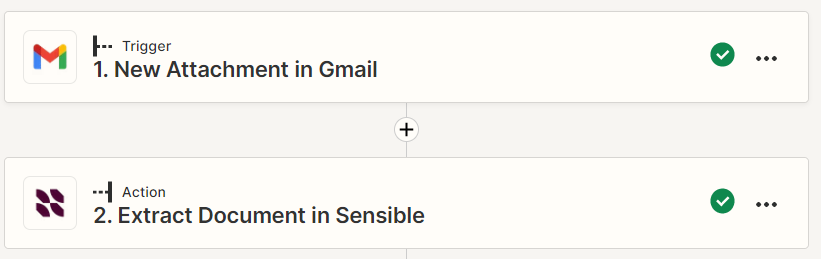
Every time you receive an email in Gmail with a 1040 document attached, Zapier triggers Sensible to extract data from it.
### Zap 2
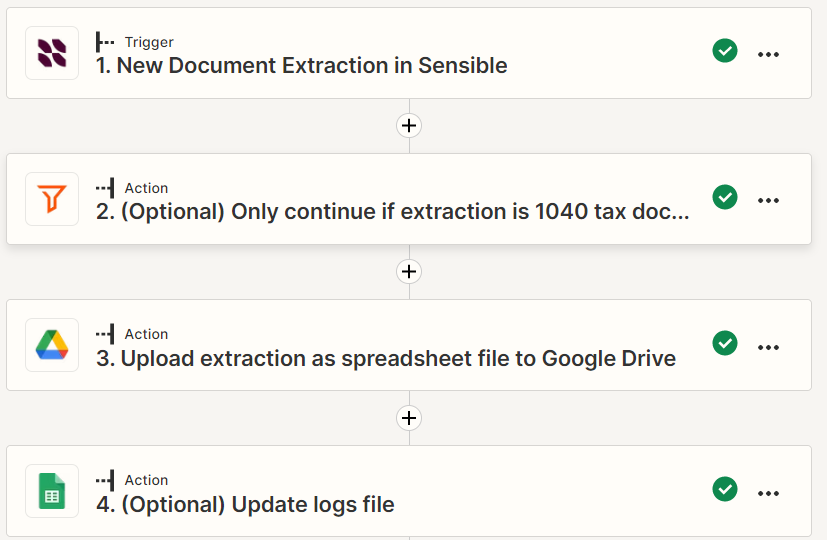
Every time Sensible extracts a document, Zapier checks that it's a 1040 document. If so, Zapier triggers Sensible to create a spreadsheet of the extracted data, and uploads the spreadsheet to a folder in Google drive.
Take the following steps to run these Zaps with example data, then modify them for your needs.
### Prerequisite: Configure 1040 extractions in Sensible
Follow the steps in [Getting started with out-of-the-box extractions](/layout-based-extractions/library-quickstart) to configure extracting data from a 1040 tax form.
### Prerequisite: Configure Google accounts
1. Choose a Gmail account for the Zaps. Send a test email to it with an [example 1040 document](https://github.com/sensible-hq/sensible-configuration-library/raw/main/tax%5Fforms/1040/2021/1040%5F2021%5Fsample.pdf) attached and make sure the subject line includes the text `1040`.
2. Create an empty Google Drive folder as a destination for the spreadsheets of extracted data.
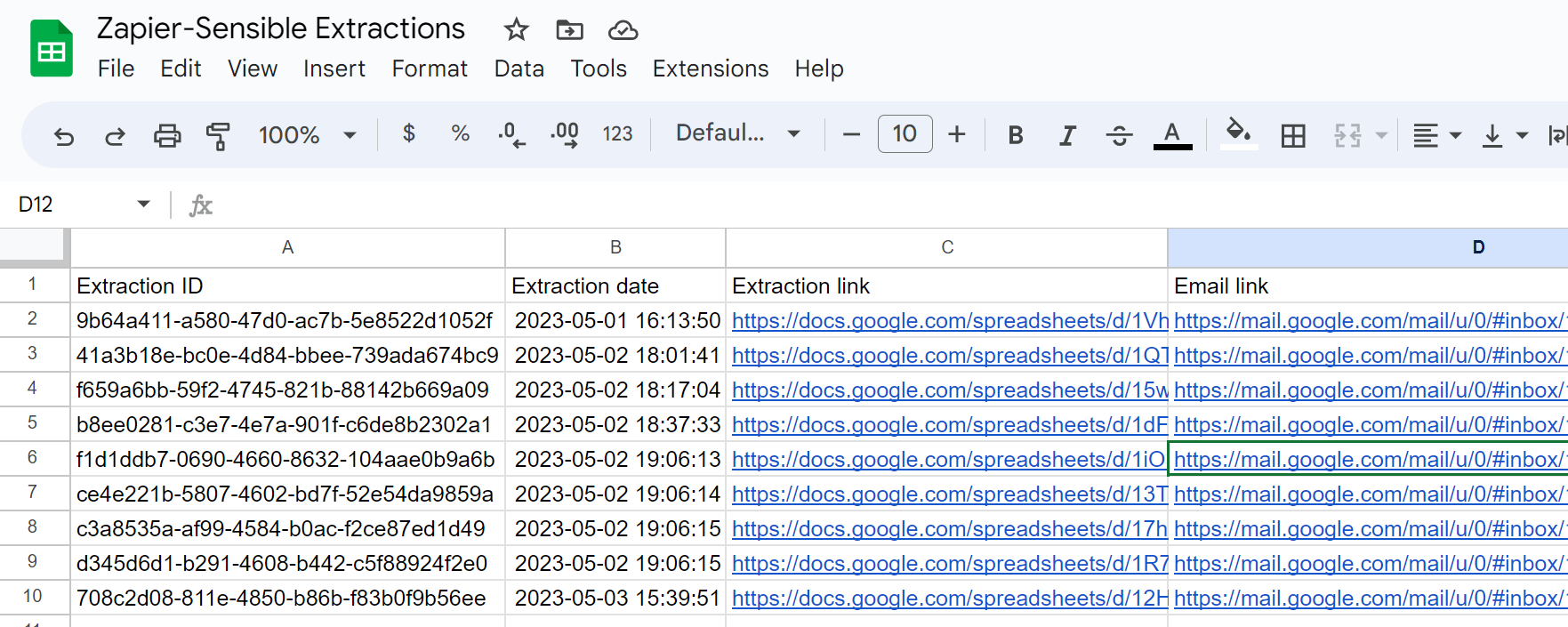
3. (Optional) In the Google Drive folder, create a spreadsheet named `Zapier-Sensible Extractions Logs` to log each time the Zaps run. Create columns to record information about each extraction, for example, `Extraction ID` , `Extraction Date` , `Email link`, and `Extraction link`.
### Zap 1: Extract emailed 1040 doc with Sensible
See the following steps to configure Zap 1
### Zap 2: Upload extraction as spreadsheet to Google drive, if it's a 1040
See the following steps to configure Zap 2.
### (Optional) Test your integration
Congratulations, your integration is now published and running! Take the following steps to continue populating a Google folder from example documents:
1. Email the following example 1040 documents to the Gmail account, ensuring that they match the search criteria you created in Zapier:
* [2018 1040 example document](https://github.com/sensible-hq/sensible-configuration-library/tree/main/tax%5Fforms/1040/2018)
* [2019 1040 example document](https://github.com/sensible-hq/sensible-configuration-library/tree/main/tax%5Fforms/1040/2019)
* [2020 1040 example document](https://github.com/sensible-hq/sensible-configuration-library/tree/main/tax%5Fforms/1040/2020)
2. Zapier can take up to 15 minutes to pull data from Sensible. To avoid waiting, navigate to the **Zaps** tab in Zapier, right-click the Zap's ellipsis (...) icon and click **Run**.
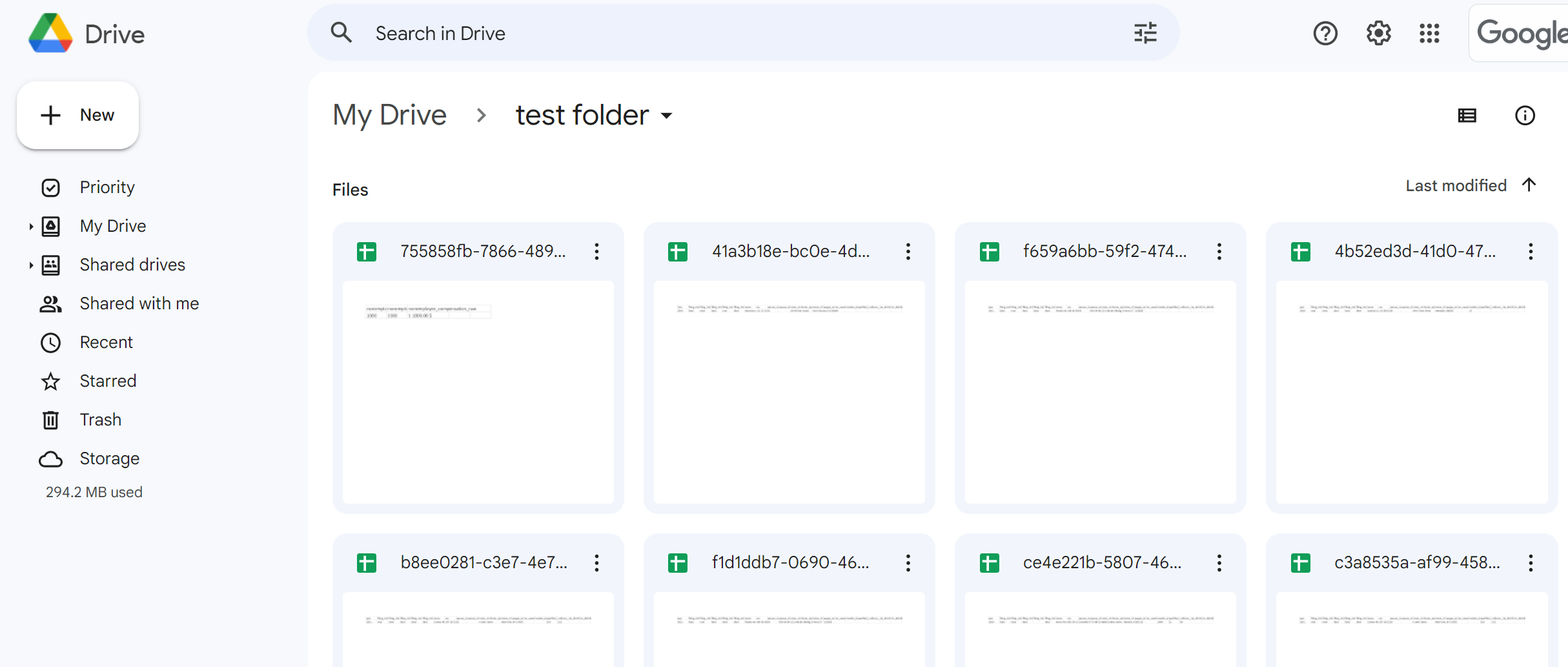
3. Wait a few minutes, then verify the extractions show up in your Google Drive folder as spreadsheets:\
4. Verify the extractions show up in your optionally configured logs:\
### Notes
**General Limitations**
* You can configure single-value field output with the Sensible-Zapier integration. For multi-value output such as tables and sections, you can compile document extractions into a spreadsheet or CSV file using Sensible's API. For more information, see [SenseML to Excel reference](/integrations/quick-extraction/excel-reference).
* You can extract from single-document files with Zapier. If you want to extract from portfolio files (documents that contain multiple documents, for example, insurance application bundles), use the Sensible app, API, or SDK.
**Sensible action limitations**
* If you select **New file in folder** event in Google drive folder as the trigger for the Sensible action, Zapier ignores uploaded files whose create or modified date is older than 4 days.
* When setting up the Sensible action, run an extraction on the same file you intend to use for your Zapier sample setup a minute or so before you start configuring the Zap in order to get sample data. Otherwise, Zapier returns an incomplete extraction during configuration.